PHANTASY STAR UNIVERSE Ambition of the Illuminus Online Manual
PHANTASY STAR UNIVERSE Online ManualChat Commands
"Chat commands" let you add various effects to your chat by inserting specific strings.
Chat commands can also be set as chat shortcuts.
Enter commands in half-width letters and numbers, and put a half-width space between commands and between a command and your text.
| Action | Command | Notes |
|---|---|---|
| Lobby Actions | /alt○○ | Replace ○○ with f1–12, 0–9 or a–z |
| Opposite-gender lobby actions | /salt○○ | Replace ○○ with f2–12, 0–9 or a–z |
| Cloud speech bubble | @ctext | Thinking (fuzzy) |
| Exclamation speech bubble | @stext | Emphasis (spiky) |
| Cut-in | @○□text | Replace ○ with 0–9 for the expression and □ with 0–3 for the camera position |
| Sound effect | &○ | Replace ○ with 0–127; not usable in cities |
| Character voice | !○ | Replace ○ with 0–26; 0–11 in fields only, 12–26 in My Room only |
| Text color | {color name}text | Available color names: {red} {bei} {gre} {vio} {blk} {ora} {yel} {blu} {pur} {gra} {whi} {re} returns to the default |
| Menu shortcut | /menu /item /map /party /partnercard /pcard /shortcut /publiclog /pblog /partylog /ptlog |
|
| Random | /random /dice /card |
- "/" "@" "!" "&" can be combined, but must be entered in the order "/" "@" "!" "&".
- To use "@c" or "@s" together with "@○□", combine them, as in "@s12".
- Menu shortcuts can only be used on their own.
- If a text color "{}" comes before the "/", the command does not work.
- Commands work without a half-width space, but if, for example, you want the sound effect "&10" while showing "2 successes" and enter "&102 successes", you get sound effect "&102" with " successes" shown.
- /saltf1 is the lobby action (sitting on the ground) for your character's gender.
Chat command example
- STEP1
-
Switch to chat input mode.
As an example, here is how to show a chat that combines a "lobby action", a "cut-in chat" and a "text color change".
First, press [Space] to switch to chat input mode.
- STEP2
-
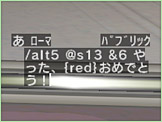
Enter the chat command.
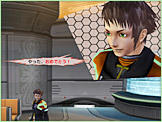
Enter the chat command "/altf5 @s13 &6 Yes! {red}Congratulations!" and press [Enter] to confirm. If it is entered correctly, a chat combining each instruction is shown, as on the left.
Special chat commands
These are chat commands with special effects. They are entered the same way as normal chat commands.
Gender-specific lobby actions
| Command | /malt○○ (male lobby actions) /falt○○ (female lobby actions) |
- You can enter f2–f12, 0–9 or a–z in place of ○○.
- For this chat command only, you do not need a half-width space between the command and ○○.
- /maltf1 and /faltf1 are the lobby action (sitting on the ground) for your character's gender.
Example: /faltk
Entering this command performs the female-only kicking lobby action.
Drawing multiple cards
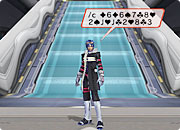
| Command | /card ○ (number to draw, 1–10) |
Example: /card 5
- In My Room there is a deck, and the same card will not come up again until all 53 cards have been drawn.
Shuffling the cards
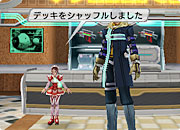
| Command | /card shuffle |
- In My Room there is a deck, and the same card will not come up again until all 53 cards have been drawn. Entering this command resets the deck.
- Only the owner of the My Room can use this command.
Rolling multiple dice
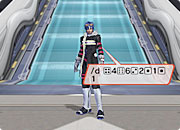
| Command | /dice ○ (number to roll, 1–5) |
Example: /dice 3
Registering a banned word
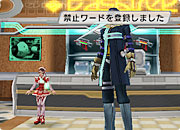
| Command | /pm ng ○○ |
Example: /pm ng monster
After entering the command, saying "monster" makes the Partner Machine react.
- After registering, enter "/pm ng" to delete the registered banned word.
- Only the owner of the My Room can use this command.
- It resets once there are no players left in the My Room.
Swapping words
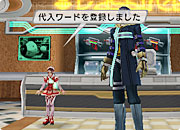
| Command | /pm ch ○○ △△ |
Example: /pm ch saber spear
After entering the command, saying "saber" is automatically changed to "spear".
- After registering, enter "/pm ch" to delete the registered swap words.
- Only the owner of the My Room can use this command.
- It resets once there are no players left in the My Room.
Adding a word to the start of your chat
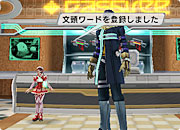
| Command | /pm top ○○ |
Example: /pm top Hey!
After entering the command, "Hey!" is always inserted at the start of your chat messages.
- After registering, enter "/pm top" to delete the registered start word.
- Only the owner of the My Room can use this command.
- It resets once there are no players left in the My Room.
Adding a word to the end of your chat
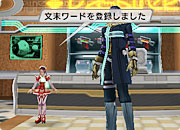
| Command | /pm end ○○ |
Example: /pm end Over!
After entering the command, "Over!" is always inserted at the end of your chat messages.
- After registering, enter "/pm end" to delete the registered end word.
- Only the owner of the My Room can use this command.
- It resets once there are no players left in the My Room.
Changing your online status
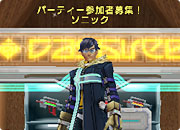
| Command | /os ○○ |
Example: /os Recruiting party members!
Shows the text you enter as your online status. If it exceeds the number of characters that can be shown, the text is shown up to that limit.
- The part beyond the character limit is deleted automatically.
Changing the character info display
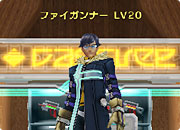
| Command | /name ○ |
Example: /name t
The characters you can enter and what they show are as follows.
| [o] [O] | Nothing shown |
| [n] [N] | Name |
| [l] [L] | Name + level |
| [a] [A] [i] [I] [p] [P] | Partner card number |
| [t] [T] [j] [J] | Type + Type level |
- If you enter any other string, or none, "online status + name" is shown.
- Only the first character is checked, so entering "/name nt" shows "name" only.
Adding a user to your blacklist
| Command | /blacklist user ID (or /bl user ID) |
Example: /bl 1000000
Playing Hit & Blow
By entering a chat command, you can play "Hit & Blow", a game where you guess a randomly chosen number within the number of digits you set. You can play it alone or with others.
| Command | /hitblow ○ (number of digits to guess, 3–9) |
- If you leave out the number of digits, it is set to 4 automatically.
- Only the owner of the My Room can use this command.
- The game resets once there are no players left in the My Room.
- STEP1
-
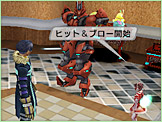
Start Hit & Blow.
Entering the command starts the game. As an example, here is how to play after entering "/hitblow 3", guessing a 3-digit number.
- STEP2
-
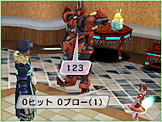
Enter any number.
Enter a 3-digit number in chat input mode and press [Enter] to confirm.
- STEP3
-
The Partner Machine shows a hint.
The Partner Machine shows a hint for the number you entered.
A "Hit" is a digit that is correct and in the right position; a "Blow" is a correct digit in the wrong position.
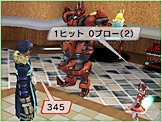
- The number in ( ) at the right end is how many guesses you have made.
- STEP4
-
Repeat STEP 2–3 to work out the answer.
Repeat STEP 2–3; the game ends when every digit matches.
At the end, the Partner Machine announces the time taken to get the answer, the number of guesses, and the name of the player who got it right.