PHANTASY STAR UNIVERSE Ambition of the Illuminus Online Manual
PHANTASY STAR UNIVERSE Online ManualControls
Basic Controls (Windows PC)
A list of the basic controls for keyboard and gamepad.
Keyboard controls
Movement controls
| [W] | Move forward, control first-person camera |
| [A] | Move left, control first-person camera |
| [S] | Move back, control first-person camera |
| [D] | Move right, control first-person camera |
| [R] | Toggle auto-run ON/OFF, toggle follow ON/OFF |
| [I] [K] | Select who to follow |
| [→] | Auto-run & follow OFF |
| [←] | Reset view to the front, step while held and moving, (hold) auto-run & follow OFF |
| [Q] | Switch between follow camera / first-person camera |
| [Shift] + [↑] [↓] [←] [→] |
Control follow camera |
| [Enter] | Talk to characters, examine, pick up items, show Lock-on Menu |
| [Ctrl] | Switch character info display |
| [↓] | Show lobby action menu, auto-run & follow OFF |
Combat controls
| [↓] | Normal attack (striking / ranged), bullets (ranged weapons), technics (technic) |
| [→] | Skills (striking weapons), technics (technic weapons) |
| [↑] | Switch one-handed weapons, switch technics on technic weapons, switch goggles view in first-person camera |
| [←] | Lock onto enemies, switch goggles view in first-person camera |
| [E] | Open Action Palette |
- If "Controller" is selected under Control device in the options, you cannot move or fight with the keyboard.
Menu controls
| [↑] [↓] [←] [→] | Move cursor, turn pages |
| [Enter] | Confirm, skip movie |
| [Back Space] | Cancel |
| [Esc] | Hide Main Menu |
| [F1] | Show / hide Main Menu |
| [F2] | Show / hide Main Menu "Belongings" |
| [F3] | Show / hide Main Menu "Map" |
| [F4] | Show / hide "Party" under Community in the Main Menu |
| [F5] | Show / hide "Simple mail" under Community in the Main Menu |
| [F6] | Show / hide "Partner cards" under Community in the Main Menu |
| [F7] | Show / hide "Shortcut settings" under Community in the Main Menu |
| [F8] | Select public chat, show / hide public chat log |
| [F9] | Select party chat, show / hide party chat log |
| [F12] | Switch chat method / chat log display |
| [Z] | Shortcut to the notification icon |
| [Home] | Show / hide Main Menu |
| [Ctrl] | Switch window pages |
| [Shift] | Switch window pages, switch between menu shortcuts / chat shortcuts (while entering) |
| [Scroll Lock] | Menu shortcut |
| [M] | Show / hide list sort options |
- F1–F9 and F12 work this way when "Menu shortcuts" is selected under Function key settings in the options.
Chat controls
| [Space] | Put keyboard input into chat input mode |
| [Tab] + [Enter] | (Press when confirming after entering chat) Show cut-in |
| [←] [→] | Choose expression after the cut-in is shown (press [Enter] to confirm) |
| [↑] [↓] | Choose camera position after the cut-in is shown (press [Enter] to confirm) (In chat input mode) Select text from your message history. |
| [Shift] + [Enter] | (Press when confirming after entering chat) Show exclamation speech bubble |
| [Ctrl] + [Enter] | (Press when confirming after entering chat) Show cloud speech bubble |
| [L] | Show / confirm chat shortcut |
| [I] [K] | Select chat shortcut |
| [J] | Cancel chat shortcut |
| [F8] | Select public chat, show / hide public chat log |
| [F9] | Select party chat, show / hide party chat log |
| [F12] | Switch chat method / chat log display |
- If "Controller" is selected under Control device in the options, you can start typing chat without pressing [Space].
- If you use a gamepad, change "Main Menu > System > Options > Control device" from Keyboard (default) to Controller, and you can type chat directly on the keyboard without pressing [Space].
Character creation controls
| [↑] [↓] [←] [→] | Move cursor, select parts |
| [Enter] | Confirm |
| [Back Space] | Cancel |
| [Shift] + [↑] [↓] [←] [→] |
(Where the color picker is available) Operate color picker |
| [Ctrl] + [↑] [↓] [←] [→] |
Zoom and rotate character |
| [Space] | (When choosing a voice) Play voice |
Gamepad controls
When using a commercial gamepad, each button and stick has a preassigned action.
The diagram below shows the controls when using ELECOM's "JC-U912FSV" / "JC-U912FBK".
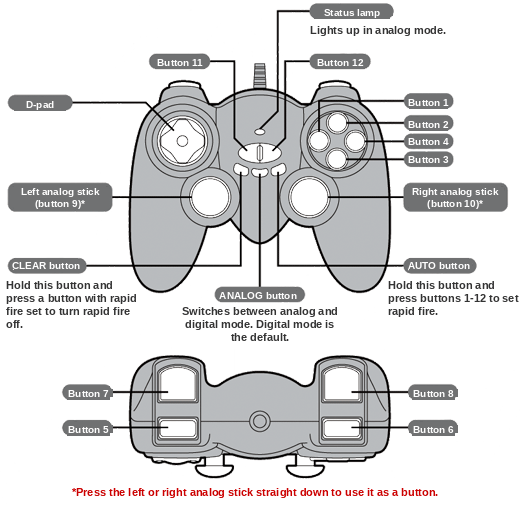
| [D-pad ↑↓] | Move cursor in menus, turn pages in menus, select who to follow |
| [D-pad →] | Show chat shortcuts, move cursor in menus |
| [D-pad ←] | Cancel chat shortcut, move cursor in menus, toggle auto-run ON/OFF, toggle follow ON/OFF |
| [Left analog stick] | Move character, control first-person camera |
| [Right analog stick] | Control follow camera / first-person camera |
| [Button 1] | Normal attack (striking / ranged), bullets (ranged), technics (technic), show lobby action menu |
| [Button 2] | Skills on striking weapons, technics on technic weapons (not used with ranged weapons), auto-run & follow OFF |
| [Button 3] | Cancel in menus, open Action Palette |
| [Button 4] | Confirm in menus, talk to characters, examine, pick up items, show Lock-on Menu |
| [Button 5] | Reset view to the front, step while held and moving, lock onto enemies, switch window pages, switch goggles view in first-person camera, (hold) auto-run & follow OFF |
| [Button 6] | Switch one-handed weapons, switch technics on technic weapons, switch window pages, switch goggles view in first-person camera |
| [Button 7] | Shortcut to the notification icon, switch window pages |
| [Button 8] | Switch character info display |
| [Button 9] | Switch chat method / chat log display, switch window pages |
| [Button 10] | Switch between follow camera / first-person camera |
| [Button 11] | Not used |
| [Button 12] | Show / hide Main Menu, skip movie |
| [ANALOG button] | Switch analog / digital mode |
- The table shows analog mode. In digital mode, the D-pad moves the character.
Mouse control
You can move with the mouse. To use mouse control, check "Window mode" and "Mouse control" in the options of the launcher menu (mouse control only works in window mode).
| [Left-click] | Move the character to the clicked position |
| [Right-drag] | Change the follow camera's view |
Screenshot assist
On Windows only, holding [Shift] and pressing [PrintScreen] during the game hides some of the information shown on screen.
In that state, pressing [PrintScreen] without [Shift] takes a screenshot with the information still hidden.
You can still play and change the Action Palette while the information is hidden.
Chat
See below for chat controls.